KO

RECEIPTS TO RECORDS, SIMPLIFIED

Organise receipts every day,
save them with photos and spreadsheets.

Calculate multiple amounts in the same category at once.
Send receipt photos to your account email or Google Drive.
Organise your records by month or financial year in Excel or Google Sheets.

Use it as soon as you sign up. No credit card required.

Income & expensesGSTRecurring entriesMulti-currency
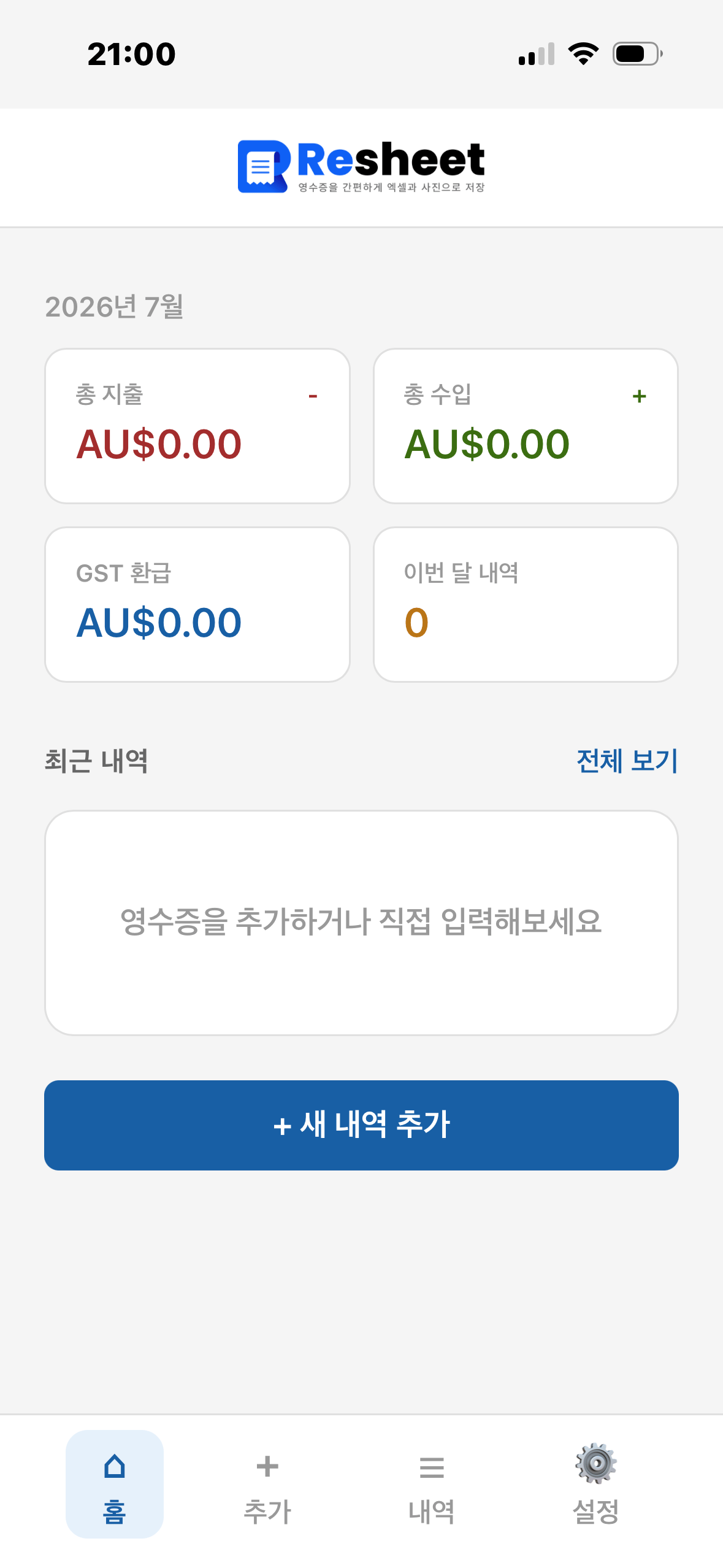
Sending a Resheet receiptExporting Resheet recordsResheet home screen
25.00 14.50 4.00= 35.50

01

Calculate as you enter

Combine several expenses from the same category and day by entering the numbers with a + between them.

02

Keep the receipt photo too

Send receipt photos straight to your account email or connected Google Drive.

03

Export a ready-to-use table

Organise monthly or financial-year records in Excel or Google Sheets.

MORE THAN RECEIPT STORAGE

Income and expense records
built for real workflows

This is more than an app for saving amounts. From entry to receipt photos, recurring transactions, reviewing periods and exporting, everything follows one clear flow.

01+-

Automatic amount totals

Enter numbers with + or - and press Enter to calculate and save the total.

02GST

Income, expenses and GST

Check monthly totals and estimated GST refunds at a glance.

03

Recurring transactions

Set a frequency and end date to add the next transaction automatically.

04

Search and totals by period

Find the records you need and see income and expense totals quickly.

SEE THE REAL APP
See the app exactly as it works

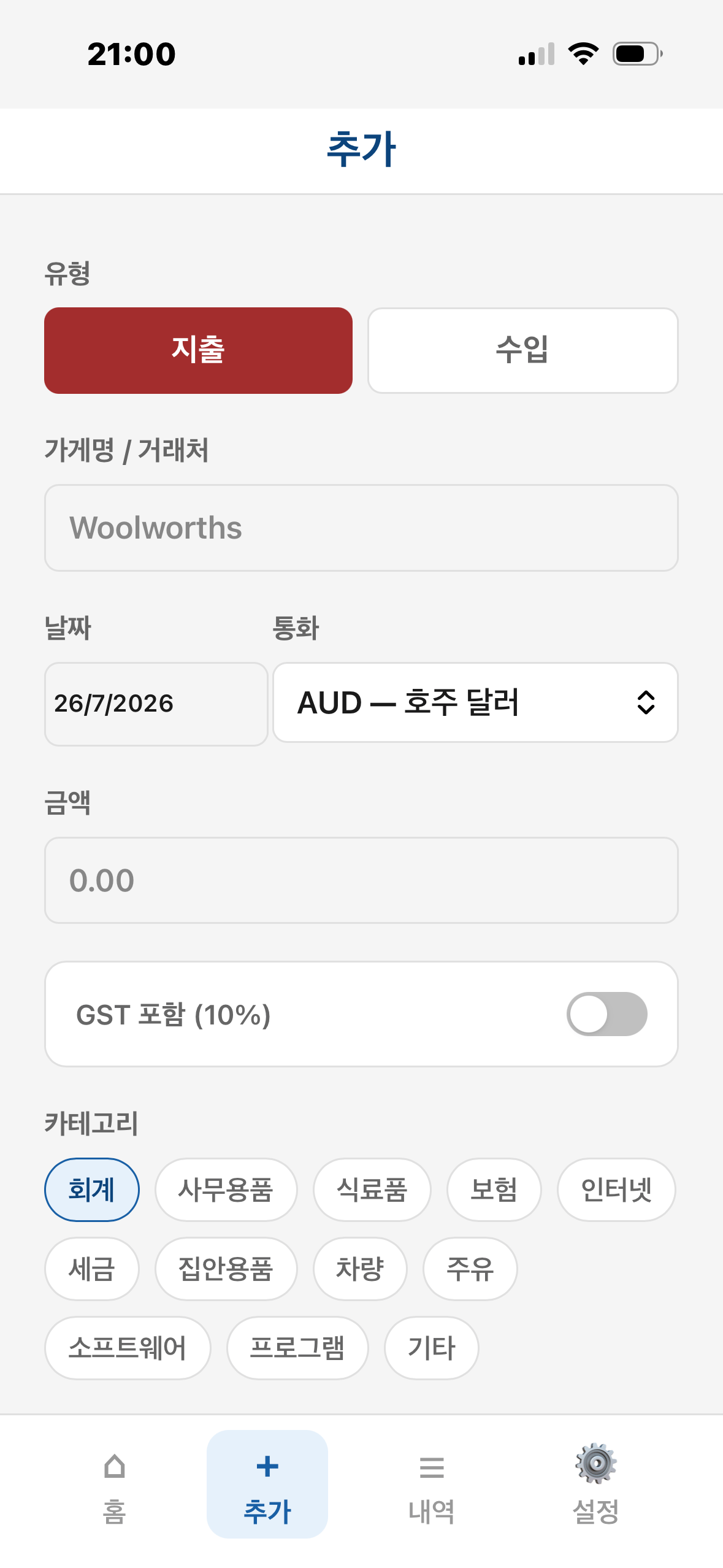
Enter only what you need screen 1

STEP 01 · RECORD

Enter only what you need

Enter the transaction type, vendor, date, currency and amount. Select GST and a category, then add a memo when you need one.
  • Separate income and expenses
  • Choose your default currency
  • Record GST inclusion
  • Keep transactions organised by category
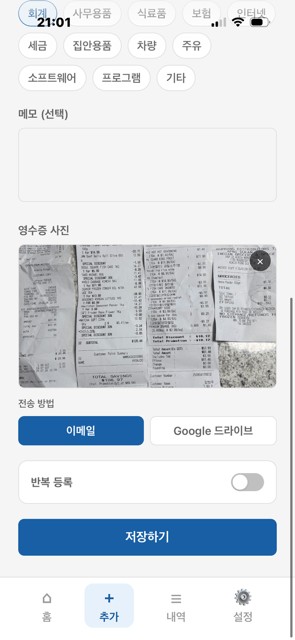
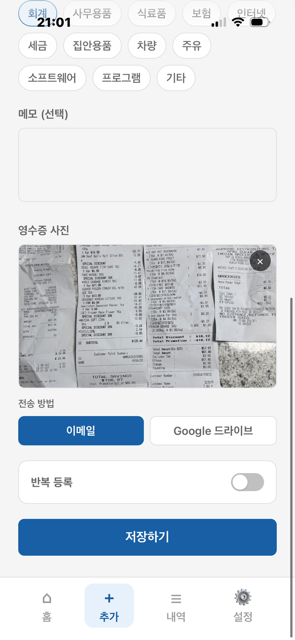
Capture or choose photos, then send them where you need screen 1Capture or choose photos, then send them where you need screen 2

STEP 02 · RECEIPTS

Capture or choose photos, then send them where you need

Choose a receipt from your library, take a photo, or select a file. Send it to your account email or connected Google Drive.
  • Photo library, camera and file selection
  • Preview or remove receipts
  • Send straight to your account email
  • Save continuously to the Resheet folder in Google Drive
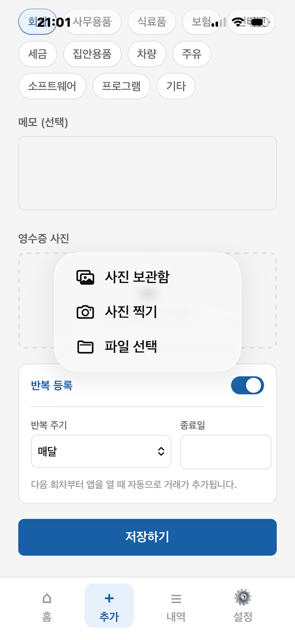
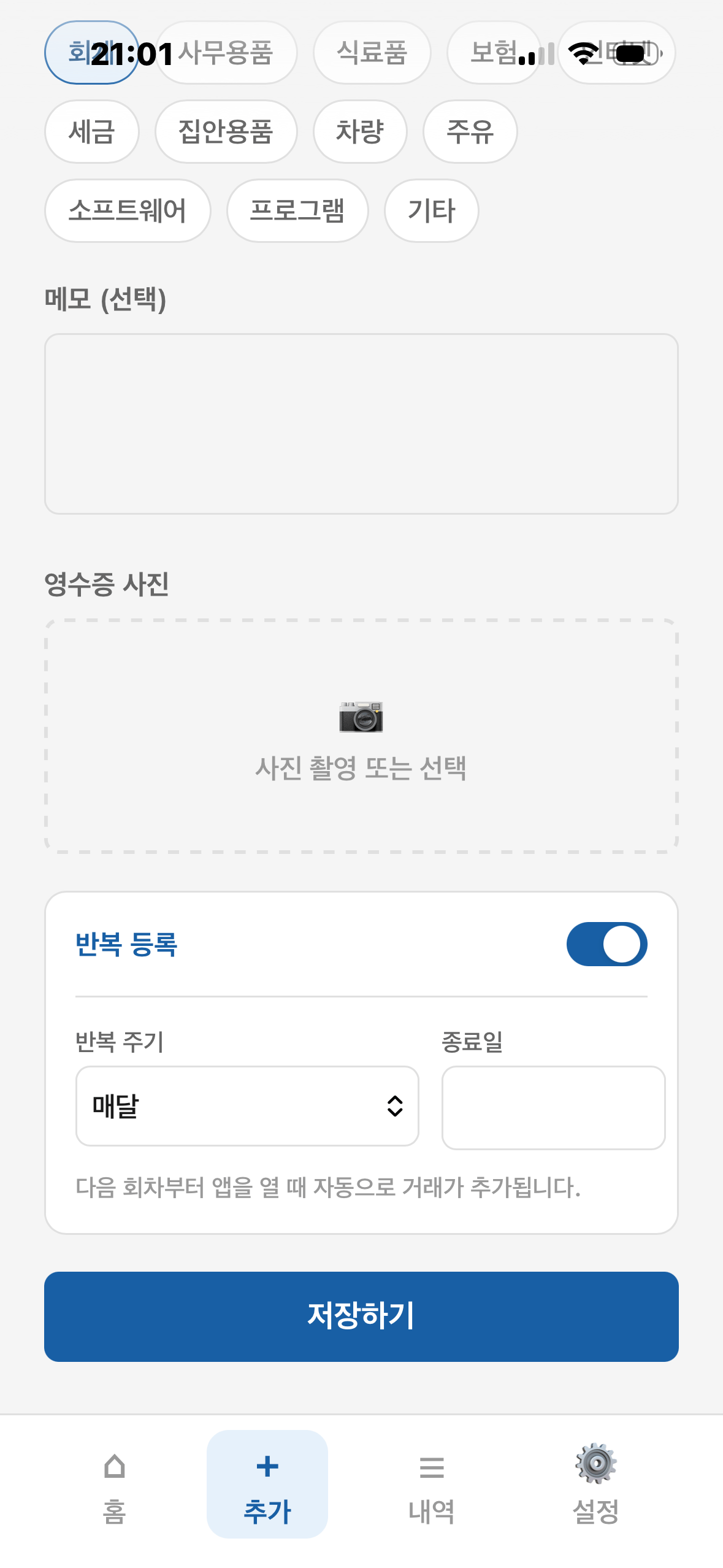
Set up recurring transactions once screen 1

STEP 03 · REPEAT

Set up recurring transactions once

For rent, insurance and subscriptions, turn on recurring entries and choose the frequency and end date. New entries are added automatically from the next cycle.
  • Turn recurring entries on or off
  • Set the repeat frequency
  • Choose an end date
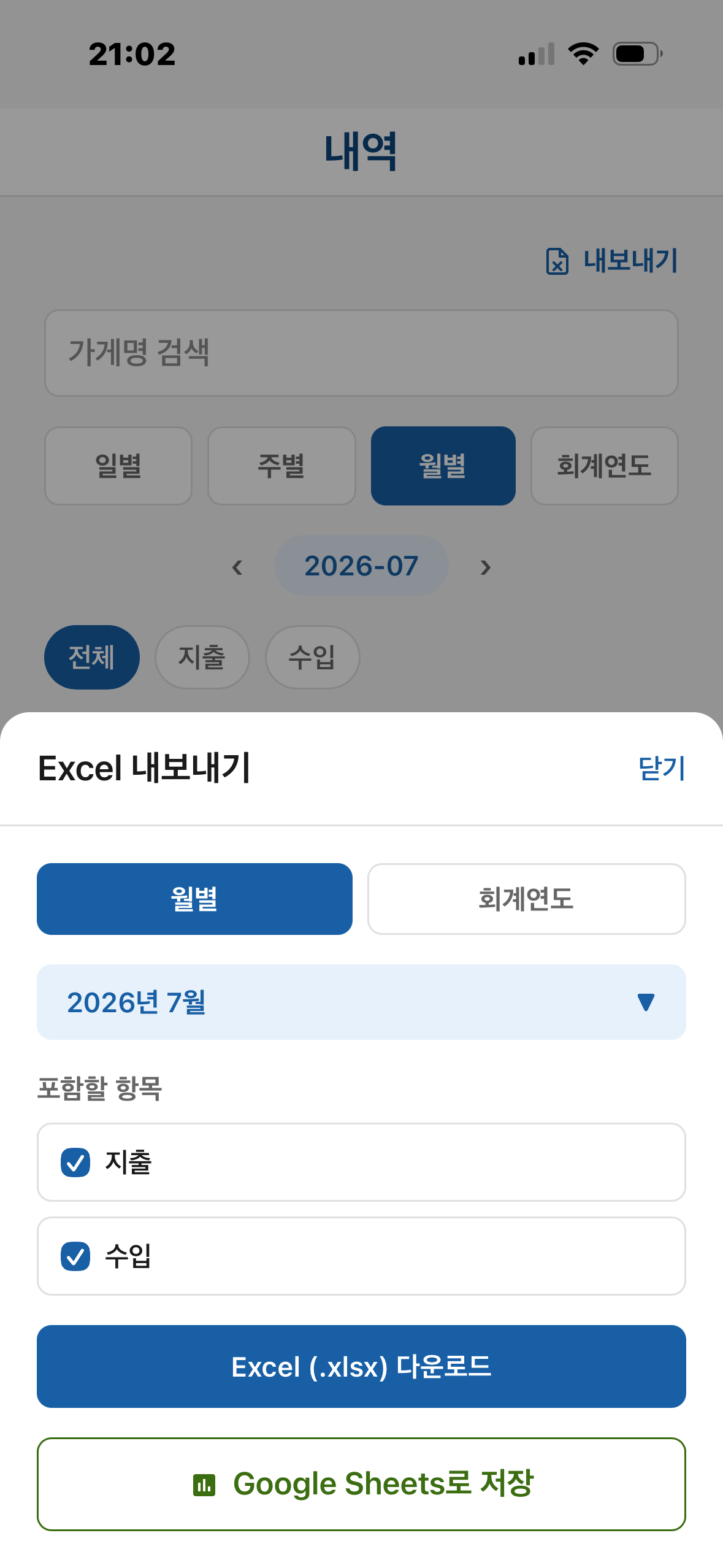
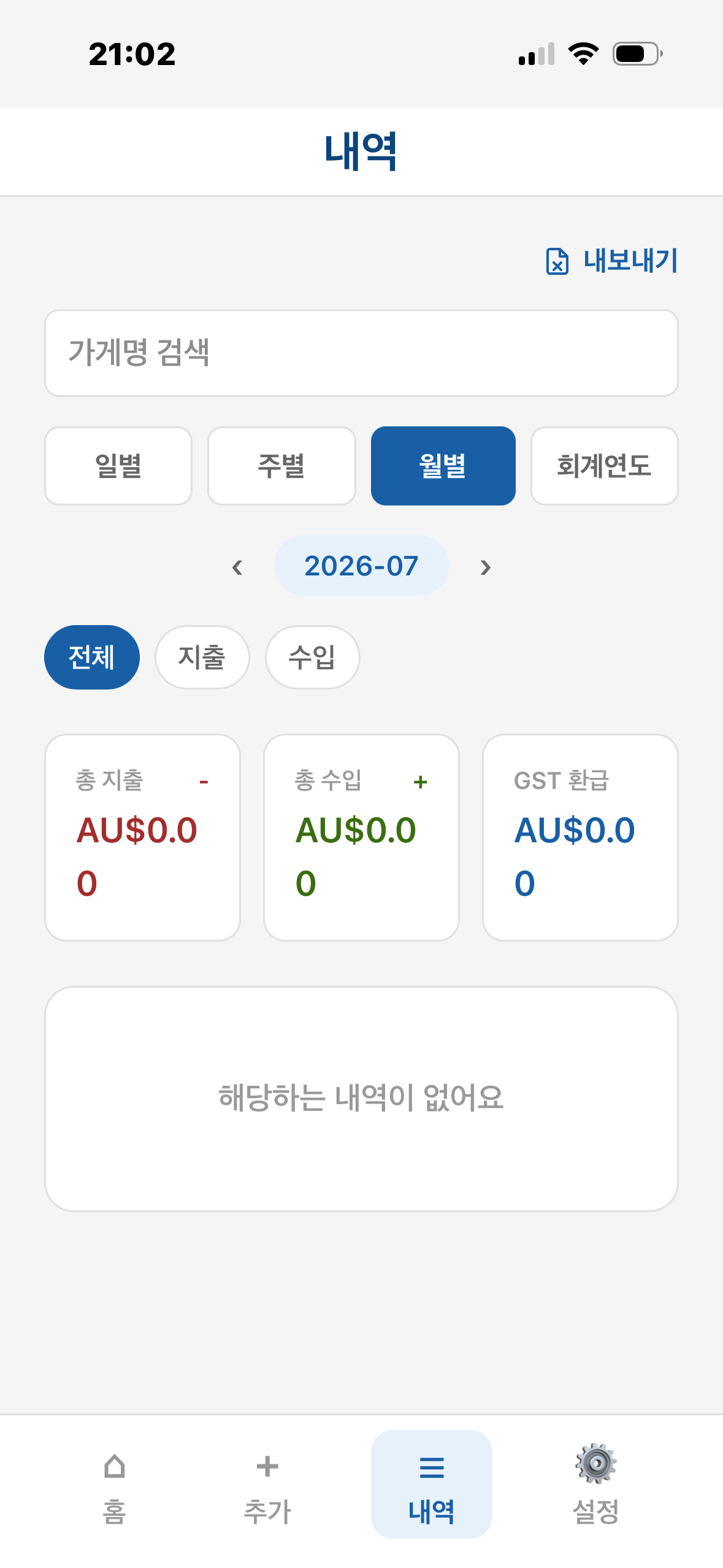
Find any period and save it as a table screen 1Find any period and save it as a table screen 2

STEP 04 · REVIEW & EXPORT

Find any period and save it as a table

Search by vendor, period or transaction type, then check totals. Organise a month or financial year in an Excel file or Google Sheets.
  • Daily, weekly, monthly and financial-year filters
  • Income, expense and GST totals
  • Download Excel (.xlsx)
  • Save to Google Sheets

MAKE IT YOUR OWN

Set up Resheet
your way

Choose categories, a default currency, your financial-year start month, receipt delivery method and language. Connect your Google account to use Google Drive receipt storage and Google Sheets export.
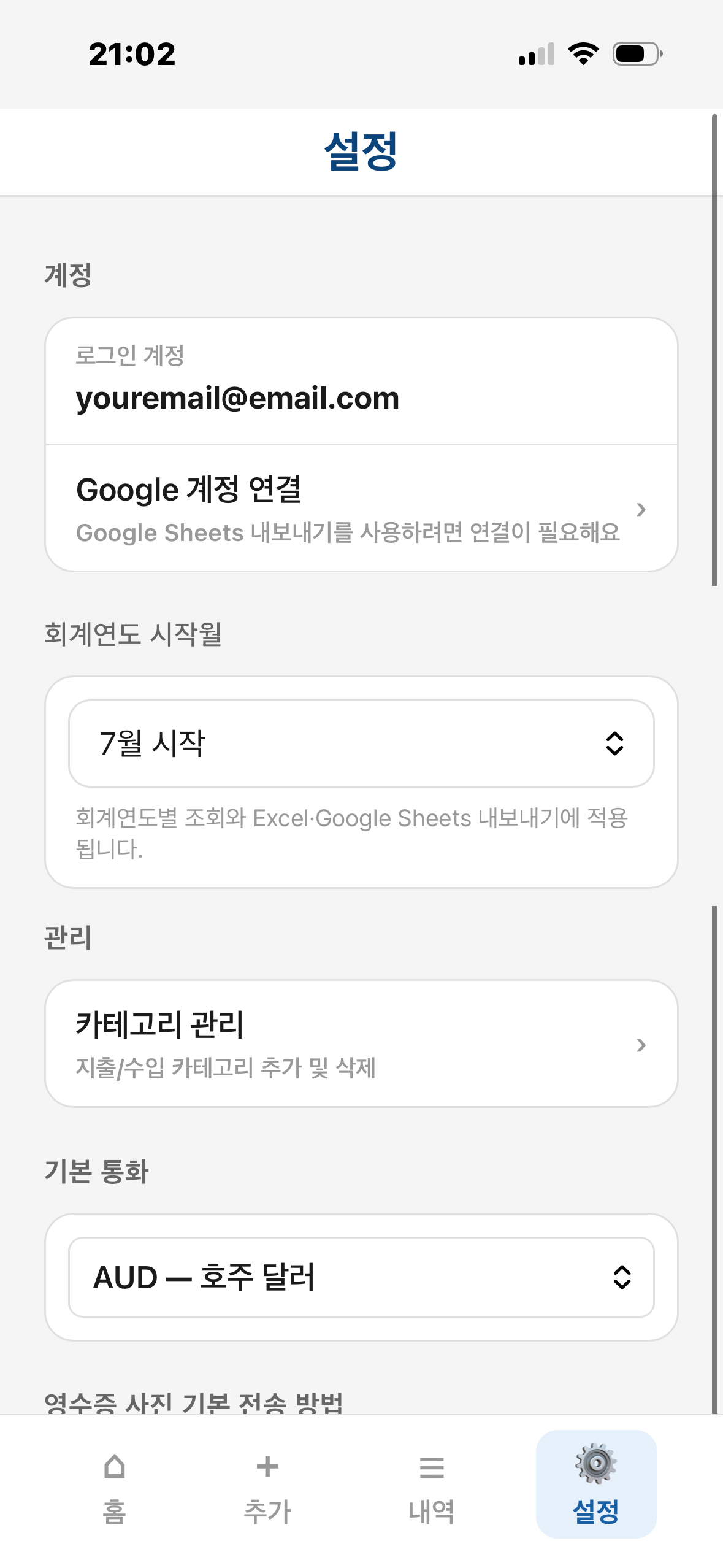
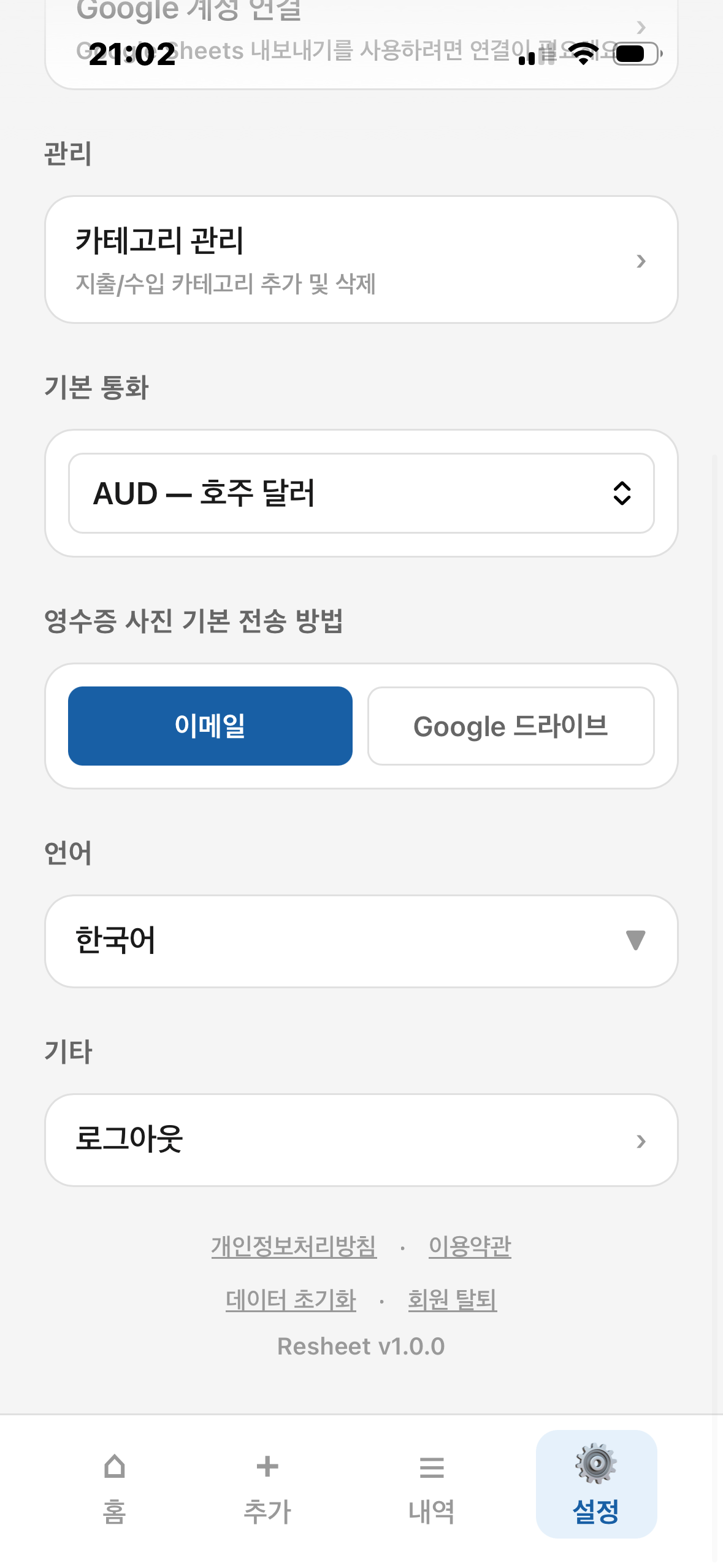
Category managementDefault currencyFinancial-year start monthReceipt deliveryKorean · English
Resheet account settingsResheet preferences

FAQ

Frequently asked questions

Answers based on the features available in the app.

When is the amount calculator useful?

It is useful when several expenses in the same category happen on the same day. Add or subtract amounts, then save the result as one transaction.

Can I add income or expenses without a receipt?

Yes. Receipt photos are optional. You can add a transaction directly with the vendor, date, amount and category.

How do I add a receipt photo?

Choose an image from your photo library, take a photo with your camera, or select a file stored on your device.

Can I save only an image?

Yes. Select an image and save it to send only the receipt photo to email or Google Drive.

Where can I send receipt photos?

Send them directly to your account email or to Google Drive after connecting your Google account.

Which periods can I review?

Review transactions by day, week, month or financial year, and filter them by vendor or income and expense type.

How can I save my records?

Organise records by month or financial year, download an Excel (.xlsx) file, or save them to Google Sheets.

MOBILE WEB APP

Add Resheet to your home screen
and start it like an app.

Add Resheet to your home screen and open it from its icon whenever you need to record something.

iOS

iPhone

Add it from Safari

  • Open Resheet in Safari.
  • Tap Share, then select Add to Home Screen.
  • Tap Add to place the icon on your home screen.
A

Android

Install it from Chrome

  • Open Resheet in Chrome.
  • Open the menu and choose Add to Home screen.
  • Tap Install to use it like an app.

START WITH RESHEET

Before receipts pile up,
record them with Resheet.

Start recording income and expenses, sending receipts, recurring entries and spreadsheet exports in one place.

Start Resheet for free
TOP